Manage your account
Update branding and business settings
Make invoices, estimates, and contracts look like your business.
4 min
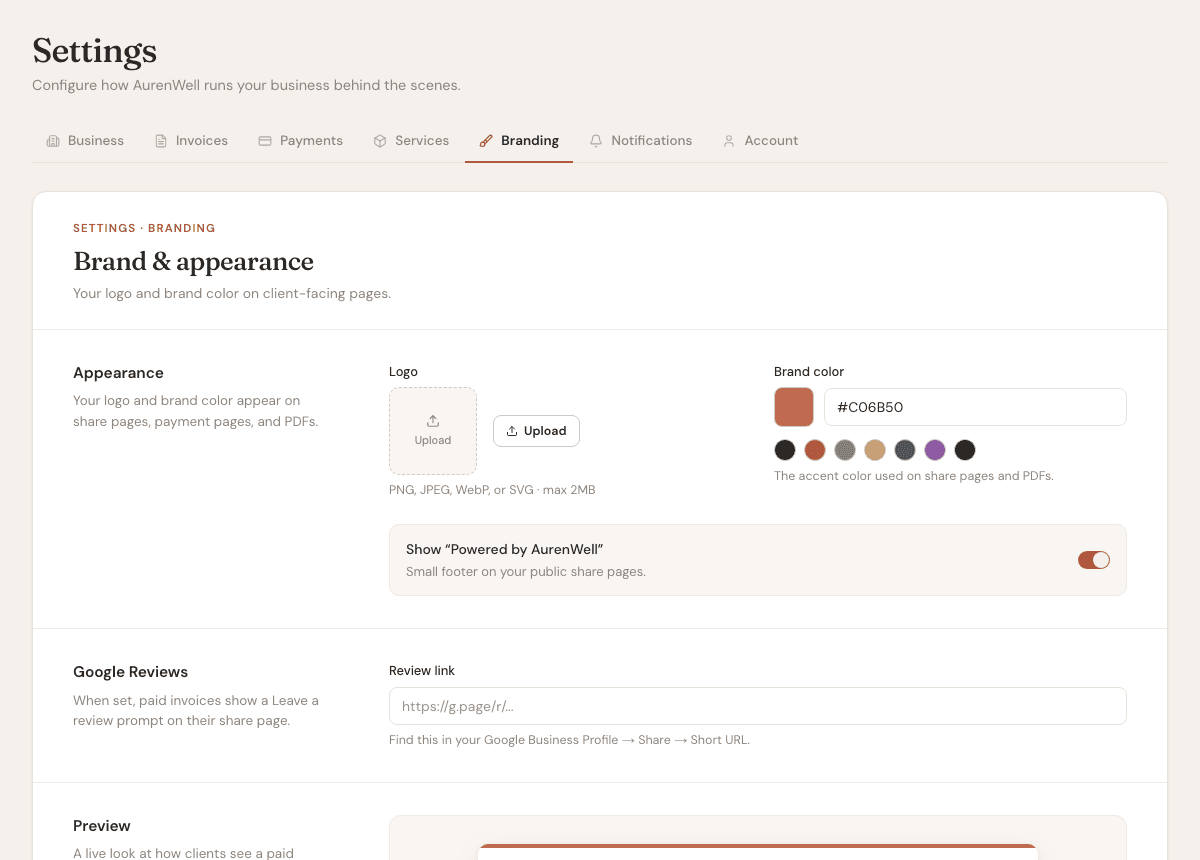
How it works
Branding and business settings control the business identity shown on documents, emails, and client-facing pages.
Steps
- 1
Open Settings from the sidebar.
- 2
Use Business to update business name, owner name, address, phone, email, and timezone.
- 3
Use Branding to upload a logo and choose a brand color.
- 4
Use Invoice settings to set defaults like prefixes, due dates, tax rate, notes, and manual payment instructions.
- 5
Create or preview a document to confirm everything looks right.
Good to know
- Business details appear on client-facing documents.
- Invoice prefixes affect new invoices going forward.
- Use a simple logo image for the cleanest PDF and share page output.