
You've finished the work, sent the invoice, and now you're checking your inbox more often than you'd like to admit. The file is attached, the client hasn't replied, and you're wondering whether the message went to the wrong person, landed in spam, or got buried under a week of internal approvals.
Learning how to send an invoice via email isn't just about attaching a PDF. The email is a small payment workflow. The recipient, subject line, message, file, payment method, delivery setup, and follow-up record all affect whether the invoice gets noticed and acted on. A clear process removes the avoidable delays.
The Invoice Email Loop Most Solo Operators Get Stuck In
A freelancer finishes a project at night, opens a personal Gmail account, and sends a message with the subject “Final invoice.” The attachment is named Invoice-final-v3.pdf. The client's project contact receives it, but accounts payable doesn't. Two weeks later, the freelancer sends a cautious follow-up. The client replies that the invoice needs to go to a different billing address, and payment can't start until the document is found and approved.
That delay rarely comes from one dramatic mistake. It comes from several small points of friction: the wrong inbox, an unclear subject, a file that looks unfinished, payment instructions hidden in the PDF, and no reliable record showing whether the message was delivered or viewed.
Practical rule: Treat the invoice email as the handoff between completed work and collected money.
Electronic invoicing is not a new workaround. An early, widely cited EDI milestone occurred in 1965, when Holland-America Line sent a shipping manifest through telex. FTP followed in 1975, making digital document transfer easier, and business email adoption expanded in the 1980s. That history is documented in this overview of electronic invoicing history. Email invoicing grew from structured electronic document exchange, not from a casual decision to send a file instead of paper.
By 2012, a Global E-Invoicing Study reported that 73% of respondents used electronic invoicing to some degree, up 14 percentage points from 2011, while supplier resistance fell from 46% to 26% in that period, as summarized in this electronic invoicing history and adoption overview. The point for a solo operator is simple. Email invoicing sits on a mature business habit, but maturity doesn't make a careless message effective.
You control the important parts. Send the invoice to the correct billing contact, make the subject searchable, show the amount and due date in the body, attach a credible PDF or provide a secure payment link, and keep a follow-up trail. That's how you stop chasing silence and start managing a process.
What to Lock Down Before You Hit Send
Before opening your email app, confirm that the invoice is going to the person or address that can approve payment. The person who hired you might be a marketing manager, site supervisor, or lead developer. That person may not control accounts payable. Ask directly for the correct billing inbox, then save it against the client record instead of trusting autocomplete later.
The invoice itself should identify your business clearly. Include your legal or trading name, business address, applicable tax or VAT identification, invoice date, unique invoice number, itemized services, rates or quantities, total, payment terms, due date, and payment instructions. If you charge a late fee, include the agreed wording in the invoice rather than introducing it for the first time after payment is late.
Make the PDF look final
A PDF should look like a document prepared for payment, not a screenshot of a spreadsheet. Use a consistent logo, readable type, sensible spacing, and line items that explain what the client is paying for. Put the project or service period beside the description so the approver can match it to the agreement or completed work.
Name the file so a busy accounts-payable worker can find it later. A format such as Invoice-1042-YourBusiness.pdf is better than final-v3.pdf, document.pdf, or a filename containing internal editing notes. The invoice number in the filename must match the number in the subject line, body, and PDF.
Run the mismatch check
Compare the amount and due date in the email with the PDF. A mismatch creates an unnecessary verification loop, and clients often pause payment until you clarify which figure is correct. Check the recipient, attachment, invoice number, totals, tax treatment, payment destination, and due date before sending.
A professional invoice email should also be sent promptly after the work is completed or the agreed billing milestone is reached. Guidance from Stripe on writing invoice emails recommends sending immediately, using a clear subject, naming the recipient, stating the invoice number, amount, and due date, and providing explicit payment instructions.
Ask yourself one question before you click send: Could someone in the client's finance team open this message and pay the invoice without asking me to explain what it is? If the answer is no, fix the message first.
Writing the Subject Line and Body That Get Opened
Your subject line has one job, recognition. Make it obvious that the email contains an invoice, identify the client or your business, and include the invoice number and due date.
Use a pattern like:
Invoice [number] from [business name], due [date]
For example:
Invoice 1042 from Northside Studio, due October 15
The word “invoice” helps the recipient classify the message. The number gives the finance team a searchable reference. The due date tells the reader that this is a payment item, not a general project update. A clear subject also makes later follow-ups easier because you can preserve the same reference instead of starting a vague thread.
Keep the body short. The recipient shouldn't need to read a sales pitch or reconstruct the project history before understanding what you want.
A copy-ready invoice email
Hi [Client Name],
Thanks again for working with me on [project or service]. Invoice [invoice number] for [amount due] is attached and due on [due date].
You can pay via [payment link or payment method]. The PDF includes the full breakdown and payment terms. Please reply if anything needs clarification or if this should go to another billing contact.
Thanks,
[Your name]
[Business name]
[Email address]
[Phone number, if useful]
Put the amount and due date near the top. Don't apologize for invoicing, bury the request under project commentary, or write “payment required immediately” when the agreed terms say something else. Plain, factual text is usually more useful than a heavily designed HTML email that looks like a marketing campaign.
Your body should contain:
- A named greeting: Address the person who can route or approve payment.
- A clear reference: Identify the project, service, or billing period.
- The payment facts: State the invoice number, amount, and due date.
- A usable payment route: Include a payment link or concise payment instructions.
- A reply path: Tell the recipient how to raise a question or correct the billing contact.
- A professional close: Thank the client without weakening the request.
The body must agree with the PDF exactly. If the email says the invoice is due on one date and the attachment says another, the client has a reason to stop.
Attached PDF Versus Payment Link in the Email
A PDF and a hosted payment link solve different problems. The PDF is a durable record that a client can download, forward, print, or store with accounting documents. The hosted link turns the invoice into an actionable page where the client can review the balance and pay without copying bank details from an attachment.
Use a PDF when the client has a formal accounts-payable process, requires a document for its records, or expects invoices to be forwarded internally. Use a hosted link when the client is a small business owner, a repeat customer, or someone who can approve and pay directly. For most solo operators, the practical answer is hybrid: attach the PDF for the record and place the secure payment link prominently in the email body.
| Factor | Attached PDF | Hosted Payment Link |
|---|---|---|
| Record keeping | Creates a portable document for filing and forwarding | Keeps the current invoice in a browser-based workflow |
| Payment speed | Requires the recipient to read instructions and initiate payment | Gives the recipient a direct route to online checkout |
| Corporate processing | Fits teams that require invoice attachments | May need to be forwarded or entered into internal systems |
| Delivery risk | Attachments can be stripped, blocked, or overlooked | The email can stay lightweight, but the recipient must trust the link |
| Fraud exposure | Bank details can be copied, altered, or substituted in a document thread | A controlled payment page reduces reliance on copied account details |
| Offline access | Works after download without internet access | Depends on the hosted page being available |
| Best practical use | Formal records and enterprise workflows | Direct payment and recurring client work |
PDFs also have a useful review function. If a client needs to extract information from a document before approving it, a tool such as Chatgrow PDF document chat can help them work with document content more efficiently, though it isn't a substitute for a secure payment process.
A PDF-only workflow becomes risky when the client must manually copy bank details. Email can be impersonated, attachments can be replaced, and payment instructions can change inside a long thread. For higher-risk clients or unfamiliar recipients, keep payment details on a controlled page and verify any requested account change through a separate trusted channel.
For a one-link payment workflow, see AurenWell's online payments feature. It can keep the payment action close to the invoice rather than making the client search the PDF for instructions.
Making Sure the Invoice Email Actually Lands
A perfect invoice is useless if the message reaches spam, goes to an outdated billing address, or arrives from an identity the client doesn't recognize. Deliverability sounds technical, but the checks that matter are understandable.
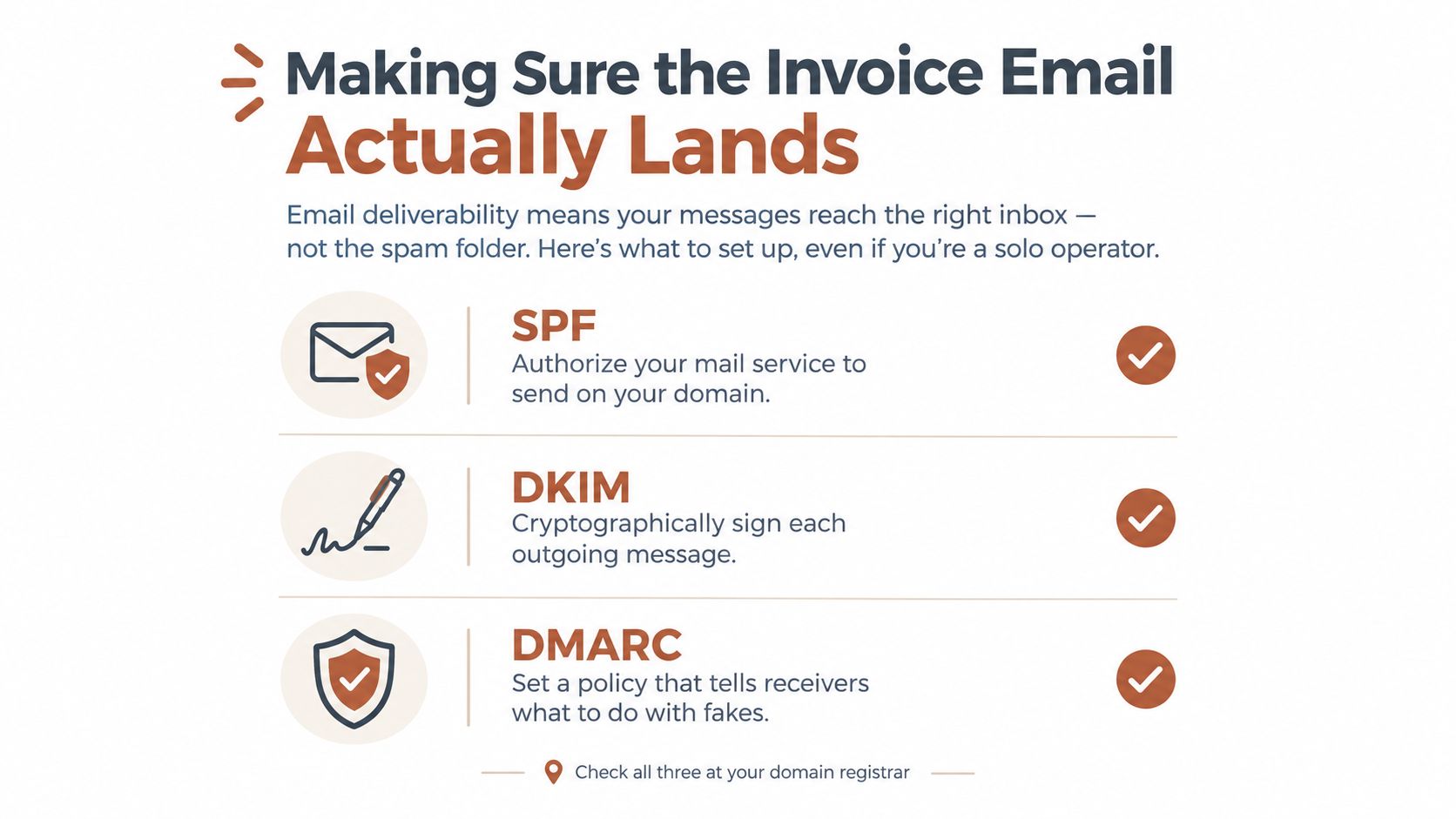
SPF tells receiving mail systems which services are authorized to send messages for your domain. DKIM adds a cryptographic signature that helps show the message wasn't altered after it was sent. DMARC tells receiving systems what to do when authentication checks fail. Configure all three through your domain provider or email service, and ask your provider to confirm that the records are active.
Send from a business domain when you can. A stable From identity such as Northside Studio | Invoices is easier for a client to recognize than a personal nickname or an unfamiliar free-mail address. Keep the display name, reply address, logo, and invoice branding consistent. AurenWell users can review branding settings to keep the sender presentation aligned with the business.
Confirm the billing address manually before sending, especially if the recipient recently changed departments. Don't rely blindly on autocomplete. Avoid image-only messages, all-caps subjects, excessive punctuation, and shortened links. These choices can make a legitimate payment request look suspicious.
A Mailbeam deliverability guide is useful if you want a broader explanation of common delivery failures without becoming a mail-server administrator. Your immediate check is simpler: authenticated domain, recognizable sender, correct recipient, readable text, and a payment destination the client can verify.
Send during the recipient's normal working hours when possible. A late-night message can disappear beneath the next day's internal traffic, especially when the invoice goes to a shared finance inbox.
Tracking Opens, Sending Follow-Up, and Keeping the Paper Trail
Sending the invoice is the midpoint, not the finish. After it leaves your outbox, you need to know whether the client saw it, whether someone else needs to approve it, and whether payment has arrived.
Open tracking usually uses a tiny invisible image in the email. When the recipient's mail client loads that image, the system records an open. Treat that signal as directional, not definitive. Privacy settings, blocked images, forwarding, and security scanners can all make an “open” different from a person reading the invoice.
Pair open activity with the invoice's payment status. “Not opened” suggests a delivery or routing problem. “Opened but unpaid” suggests an approval delay, a missing payment step, or a dispute. Neither status proves intent, but both are more useful than repeatedly wondering what happened.
Use a calm, scheduled cadence:
- Three days after sending: If there's no sign the message was seen, resend or forward the original with a short note asking whether it reached the correct billing contact.
- Seven days after sending: If the invoice was viewed but remains unpaid, ask whether payment is scheduled and whether any documentation is missing.
- Twenty-one days after sending: If the invoice is overdue, reference the agreed terms and any applicable late-fee language. Ask for a specific payment date.
These intervals are a working operating rule, not a substitute for the contract or the client's payment terms. Adjust the message to the actual due date and approval process.
For wording you can adapt during a payment chase, use these progress claim email templates. Keep each follow-up in the original thread when possible, so the invoice number and prior context remain visible. If the client asks for a corrected invoice, issue a clearly marked replacement and preserve the original rather than overwriting your records.
Save the sent message, PDF version, payment link, replies, and payment confirmation. Keep a simple log with the invoice number, recipient, send date, follow-up dates, and status. The overdue invoice reminder email guidance can help you standardize the language without sounding hostile.
A clean timeline protects your relationship and your position. Memory isn't an accounting system.
A Reusable Invoice Email Checklist
Keep this checklist beside your invoicing tool. Run it before every send, including invoices for familiar clients.
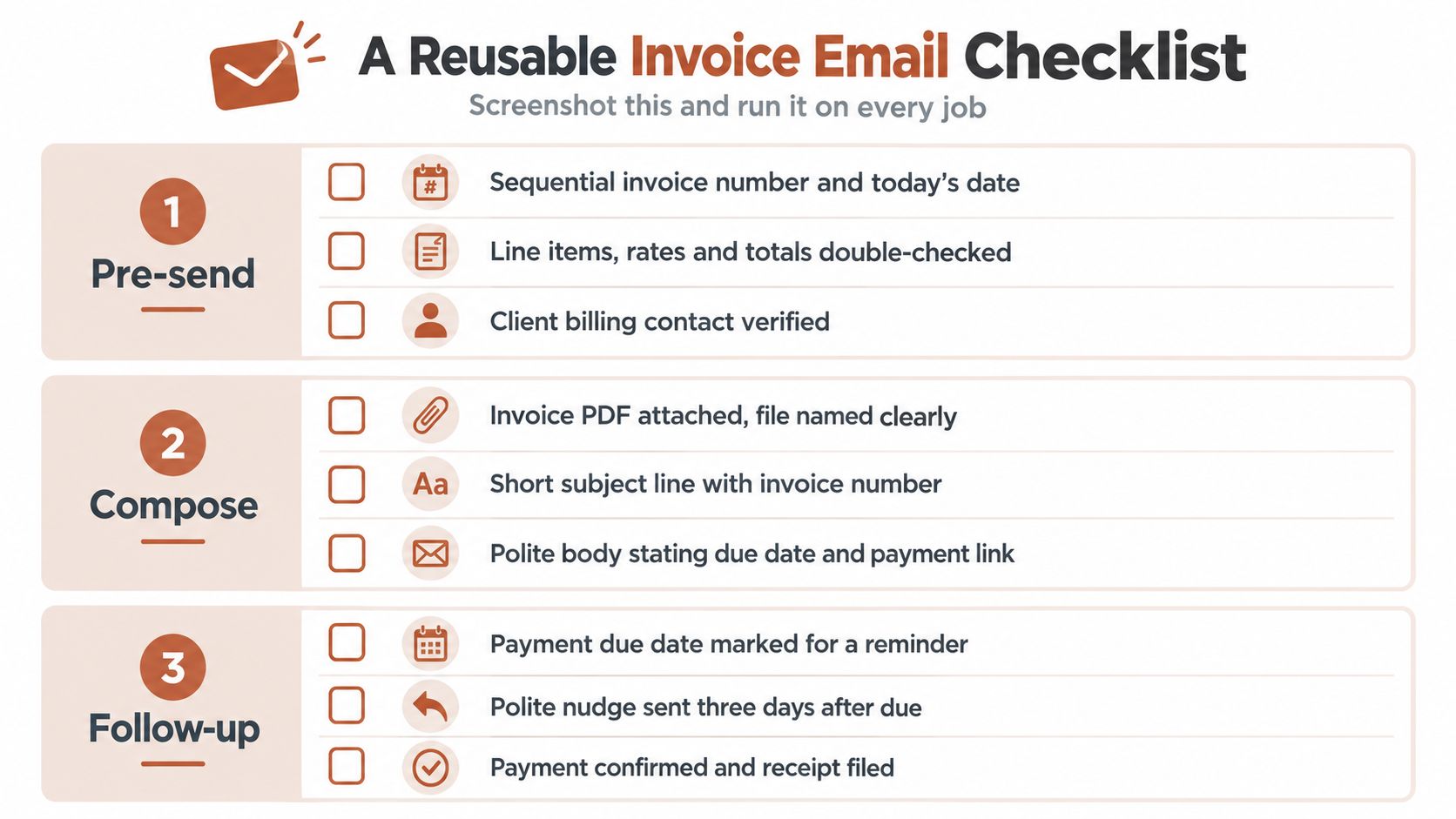
Pre-send
- Confirm the contact: Verify the accounts-payable name and email address.
- Check the reference: Assign the correct sequential invoice number and invoice date.
- Review the work: Match line items, rates, quantities, taxes, discounts, and totals to the agreement.
- Set the deadline: Confirm the due date and payment terms.
- Verify the destination: Check that the payment link or bank details are correct and unchanged.
- Inspect the PDF: Use a readable, branded document with your business details.
- Name the file: Use the invoice number and business name, not “final” or “document.”
Compose
- Write the subject: Include “Invoice,” your business name, invoice number, and due date.
- Name the recipient: Address the person who can approve or route payment.
- State the request: Put the amount due and due date in the opening lines.
- Explain the work: Add one short project or service reference.
- Show the route: Include the payment link or concise payment instructions.
- Invite questions: Provide a direct reply path for discrepancies or billing changes.
- Attach or link: Confirm the PDF opens and the hosted page shows the correct invoice.
Post-send
- Log the send: Record the date, recipient, invoice number, and delivery status.
- Watch activity: Check available send, view, and payment events.
- Schedule reminders: Mark a reminder before the due date and a follow-up after it passes.
- Follow up clearly: Restate the invoice number, balance, due date, and requested action.
- Save the trail: File the sent message, invoice version, replies, and payment confirmation.
- Close the record: Mark the invoice paid only after the payment is confirmed.
Run the same routine whether you bill one client or thirty. Consistency keeps small mistakes from becoming long payment chases.
Set up your next invoice with a verified billing contact, a searchable subject, a clean PDF, and a payment link the client can use immediately. If you want invoices, documents, payment links, reminders, and activity records in one workflow, review AurenWell and build this checklist into your regular billing process.